Temporal & Spectral Analysis
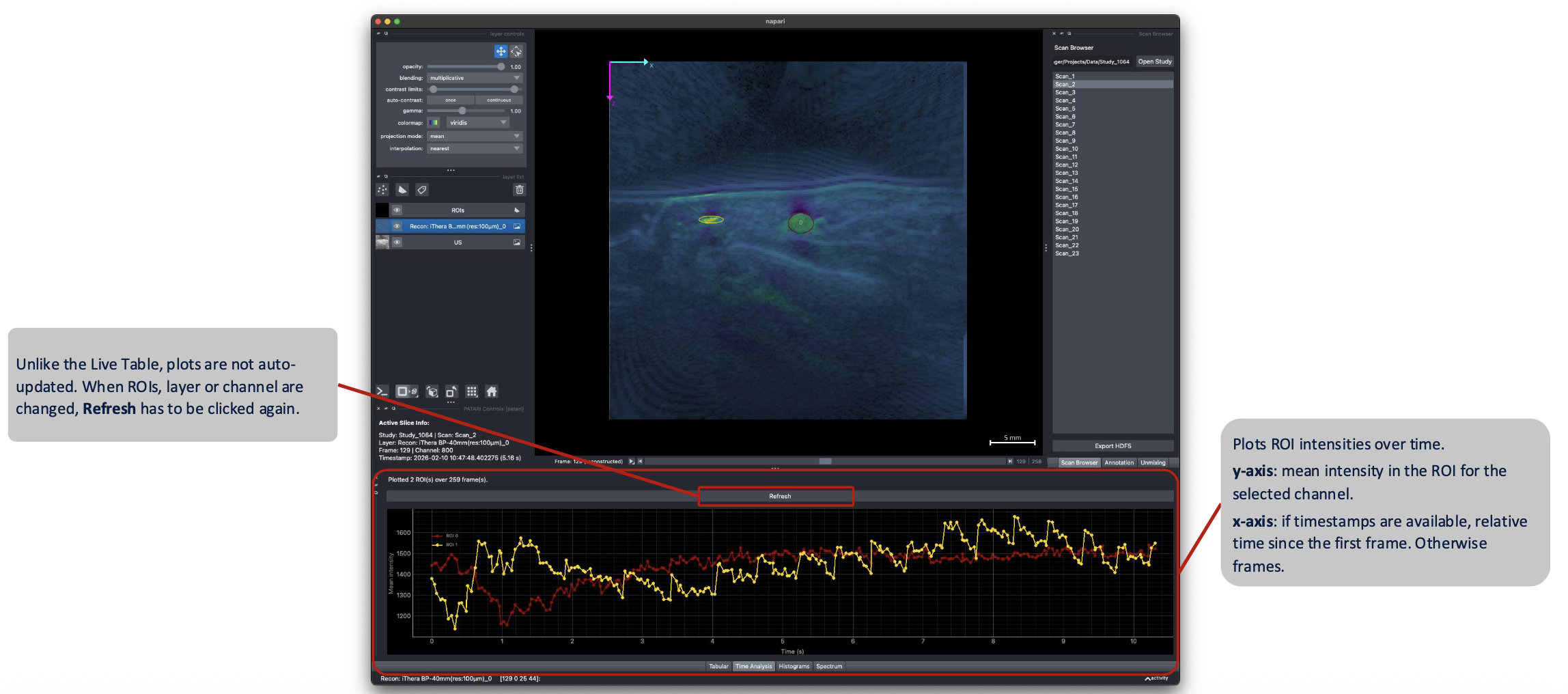
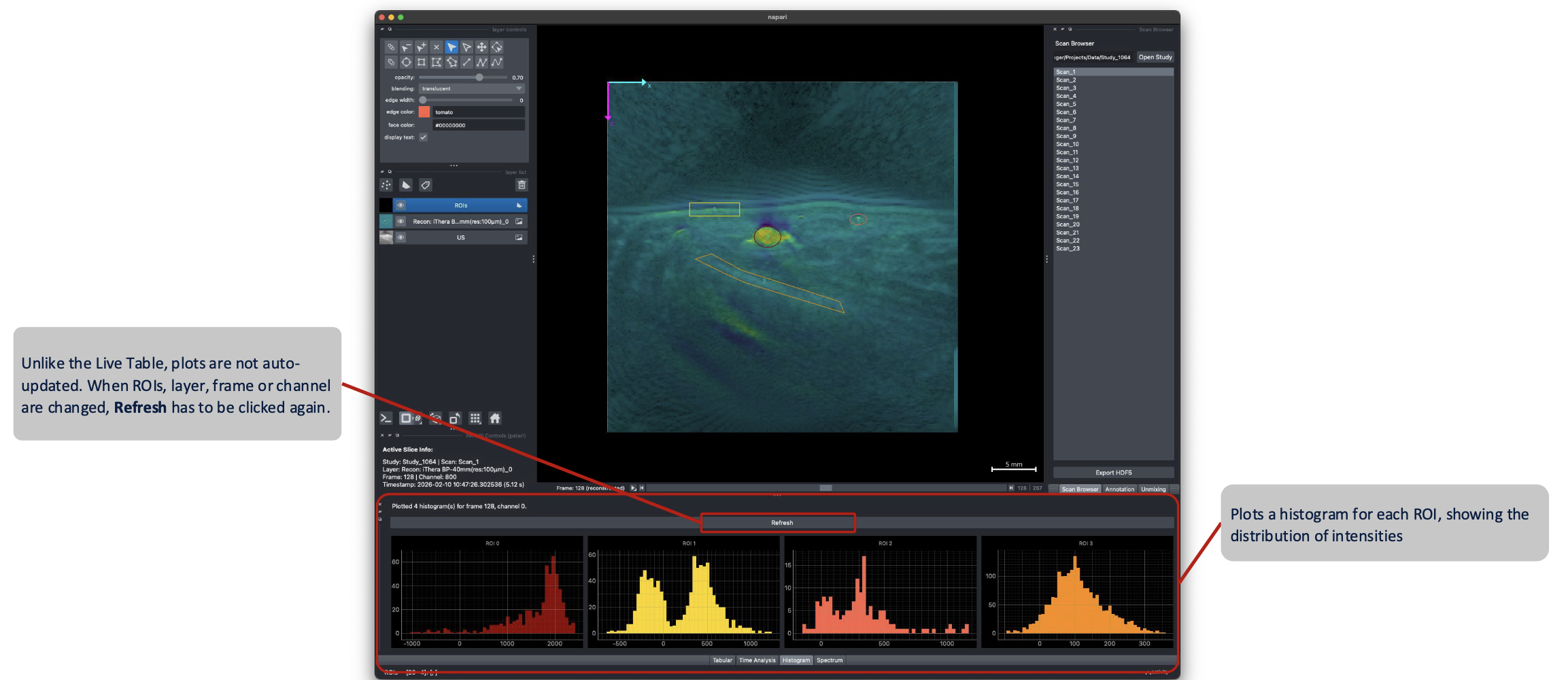
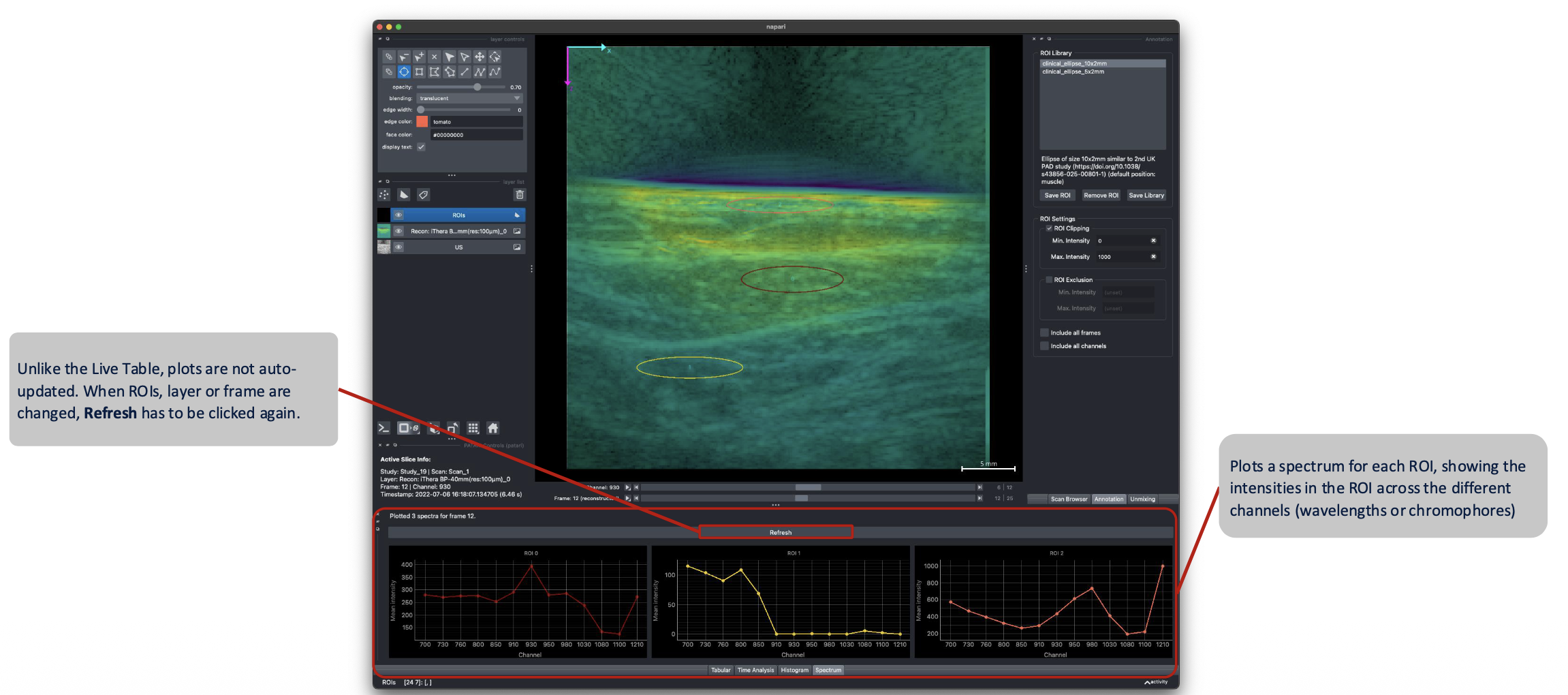
The three tabs next to the Analysis tables are used to visualize the data in the ROIs that are shown on the viewer. For performance reasons, they are not auto-updated, but are generated by clicking on the Refresh button.
Time Analysis
Plots the selected layer and channel's ROI intensity across frames, using timestamps for the x-axis where available.
The ROI feature for the y-axis can be selected in the Annotation dock on the right by changing the Time Analysis - Feature setting. By default, the mean intensity is plotted.
Scope controls which record is measured on each frame:
- Selected ROI (default): every ROI currently shown on the viewed frame is reused on every frame. This works if the movement within a sequence is low.
- Track ID: pick one tracked ROI from the dropdown (populated from ROIs currently in the viewer), and instead of a fixed position, all the ROIs that have the same
track_idare measured on their respective frame and used for the plot. This can be used to account for movement, for example by placing a ROI preset across all scans and then adjust its position on each scan (see Tracking Intensity over Time). A frame the track has no ROI on is left as a gap in the plot. A yellow line marks the frame shown in the viewer. Drag it and release to jump the viewer to the nearest plotted frame.
Note
Features like size_mm or n_pixels are constant by default, but become informative when combined with the Exclude intensity mode (see ROI Annotation) — for example, plotting the number of pixels above a threshold over time.
Histogram
Plots separate pixel-intensity distributions for each active ROI, for the currently selected layer, frame and channel, using the bin count configured in config.json (analysis.histogram_bins).
Spectrum
Plots per-ROI mean intensity across channels (i.e. wavelengths), showing the spectral signature of the tissue inside the selected ROI.
All three plots respect the intensity clip/exclude filtering defined in the Annotation dock.
By right-clicking into the plot window, you can configure each plot's axis ranges and apply additional filters or transforms, as well as exporting the plot to PNG and other file formats. By holding both mouse buttons and dragging the window, the view can be adjusted as well.