Configuration
Most OPTARI settings can be changed from inside the app. Open OPTARI → Settings… in the menu bar. Any dock can be shown or hidden from OPTARI → Docks.
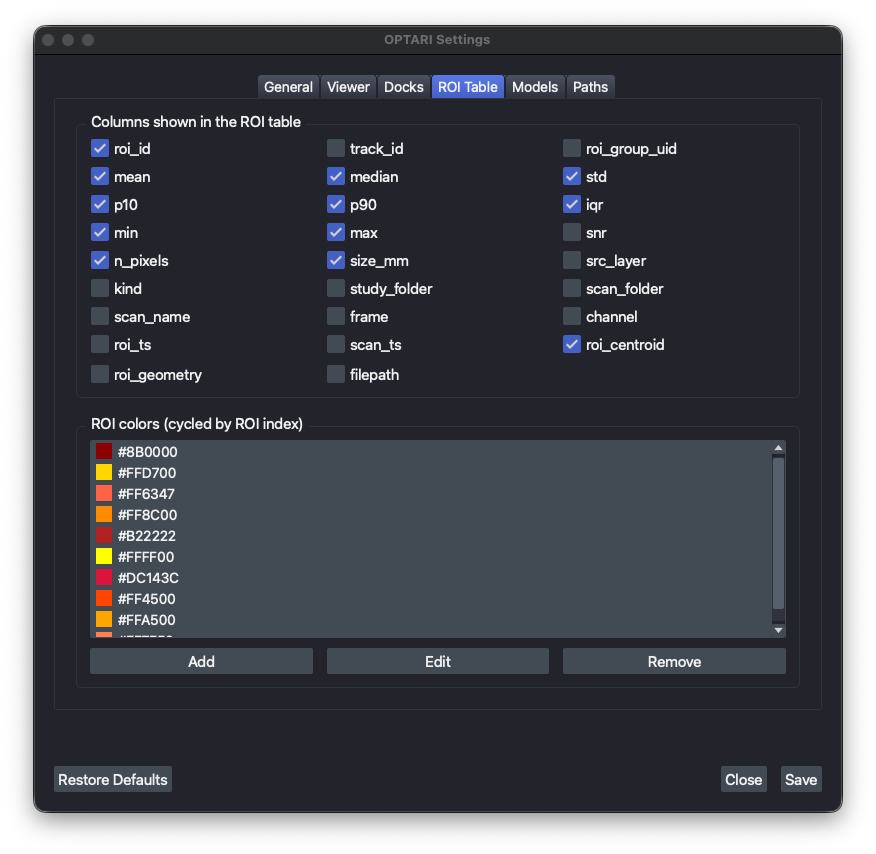
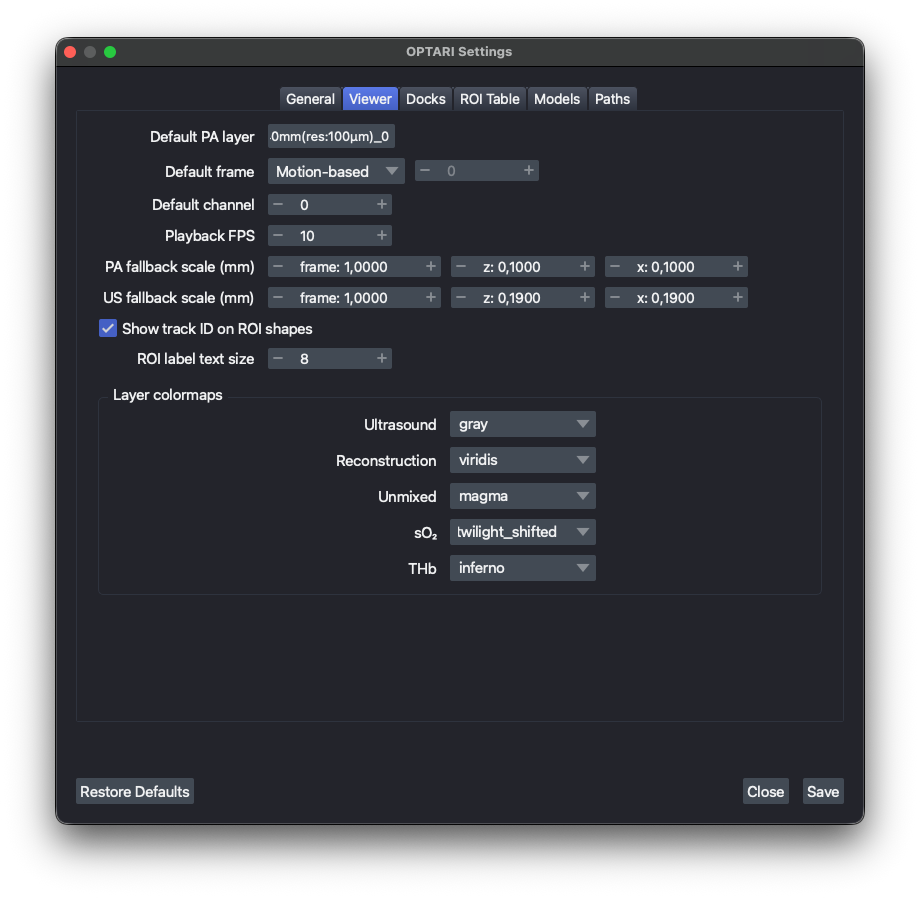
| Tab | Available Settings |
|---|---|
| General | Operator name, log verbosity, histogram bin count |
| Viewer | Default layer/frame/channel selected when a scan loads, playback speed, fallback pixel scale, layer colormaps |
| Docks | Which panels are visible when OPTARI starts |
| ROI Table | Which columns the Live Analysis table shows, the ROI color palette |
| Models | The segmentation model registry and the default model (read-only) |
| Paths | Where your config, presets, models, and log file are stored (read-only) |
Note
Settings are read once at startup, so changes take effect after you restart OPTARI.
Reconstruction, unmixing, ROI, and segmentation presets are not edited here. Each has its own Save Preset / Remove Preset controls in its own dock. See Presets.
Editing settings from file
OPTARI's settings and presets are stored in the ~/.optari/ folder as human-readable JSON. This folder is created on first launch and filled with defaults. The full reference can be found in
Configuration Schema. The same restart-required rule applies.
~/.optari/
├── config/
│   ├── config.json                  # main application settings
│   ├── segmentation_models.json     # segmentation model registry
│   └── presets/
│       ├── reconstruction/*.json
│       ├── unmixing/*.json
│       ├── roi/*.json
│       └── segmentation/*.json
├── autosave/                        # one roi_table_<date>T<time>_<pid>.xlsx backup per session, newest 20 kept
├── logs/                            # one optari_<date>T<time>_<pid>.log per session, newest 20 kept
└── models/                          # downloaded segmentation model weights