User Guide Overview
Screenshots
The screenshots in this documentation are taken on OPTARI v0.7.3. The UI might differ for newer versions
OPTARI's window is built from napari's dock system around a central image viewer. Docks can be added or removed by clicking OPTARI in the menu bar and selecting Docks.
| Position | Docks |
|---|---|
| Left | Layer List and Layer Controls — napari's built-in docks for the loaded US, OA, and annotation layers |
| Right (tabbed) | Scan Browser, Annotation, Segmentation, Unmixing, Reconstruction |
| Bottom (tabbed) | ROI Tables, Time Analysis, Motion, Histogram, Spectrum |
| Center | The napari viewer — displays US, OA, and annotation layers |
In addition, there is an Info dock (showing metadata for the current scan/slice) that floats as its own window rather than docking to a fixed position.
You can drag dock tabs to rearrange them, and napari remembers your layout between sessions.
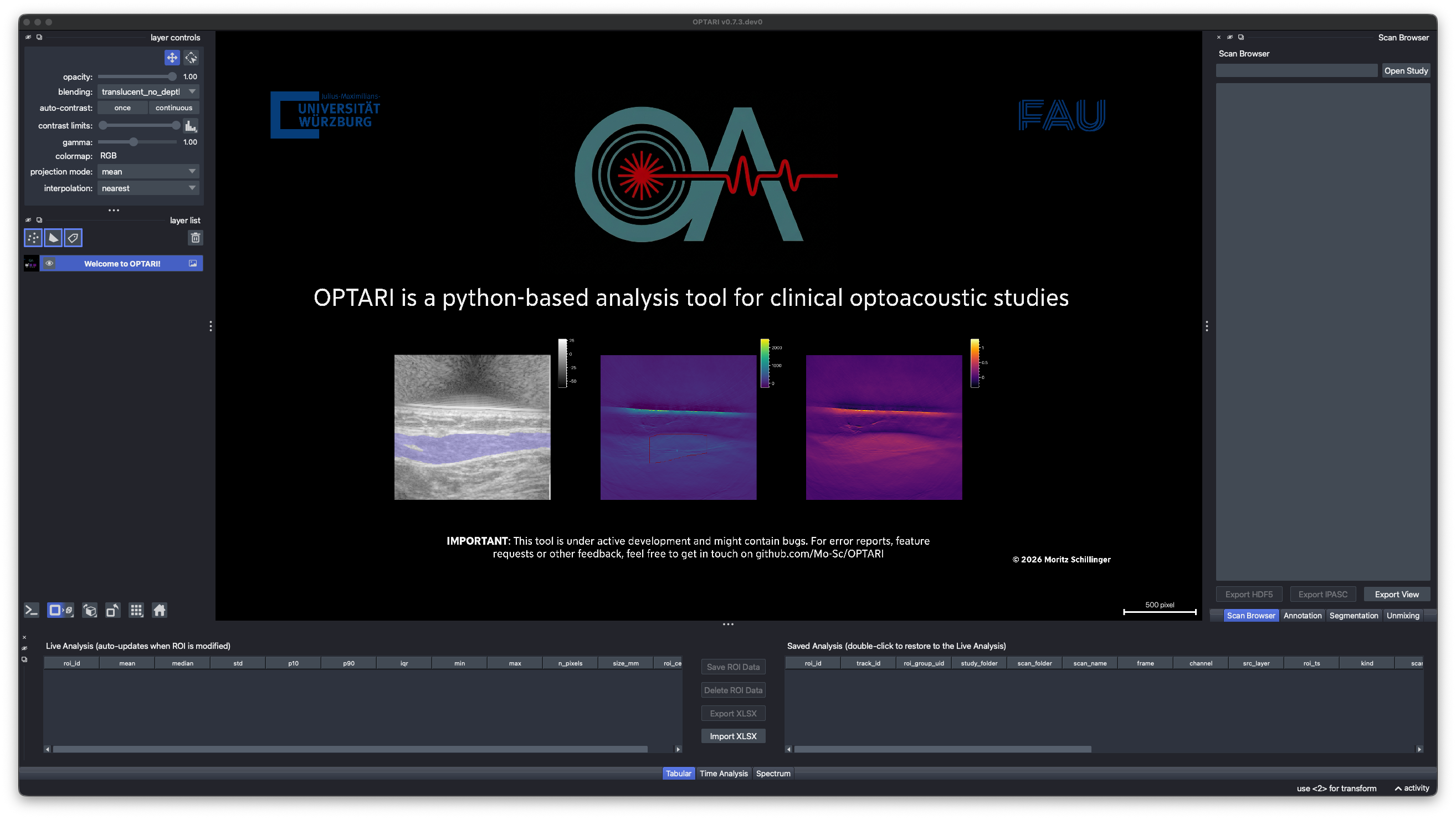
Most buttons, checkboxes, and other controls have a tooltip. Hover over one for a quick explanation of what it does before clicking.
Pages in this guide
- Viewer & Navigation — the Scan Browser, Layer List, and moving through frames and wavelengths.
- Metadata — the metadata viewer's tabs, and editing clinical metadata.
- ROI Annotation — drawing ROIs, the Live/Saved tables, and the ROI Library.
- Temporal & Spectral Analysis — plotting ROI intensity over time and wavelength, and viewing intensity histograms.
- Segmentation — automatic tissue detection and automated ROI placement.
- Reconstruction — running PATATO reconstruction presets from the GUI.
- Unmixing — spectral unmixing and derived SO₂/THb parameters.
- Exporting Data — HDF5, spreadsheet, and image/video export.
- Keyboard Shortcuts — the full shortcut reference.
- FAQ — common questions about everyday usage.
For examples of how we used OPTARI in clinical OA studies, see Sample Workflows.