Segmentation & Auto-ROI
OPTARI includes a deep-learning-based segmentation module to generate tissue maps from the US scans, as well as to automatically place ROIs in the target tissue.
Running segmentation
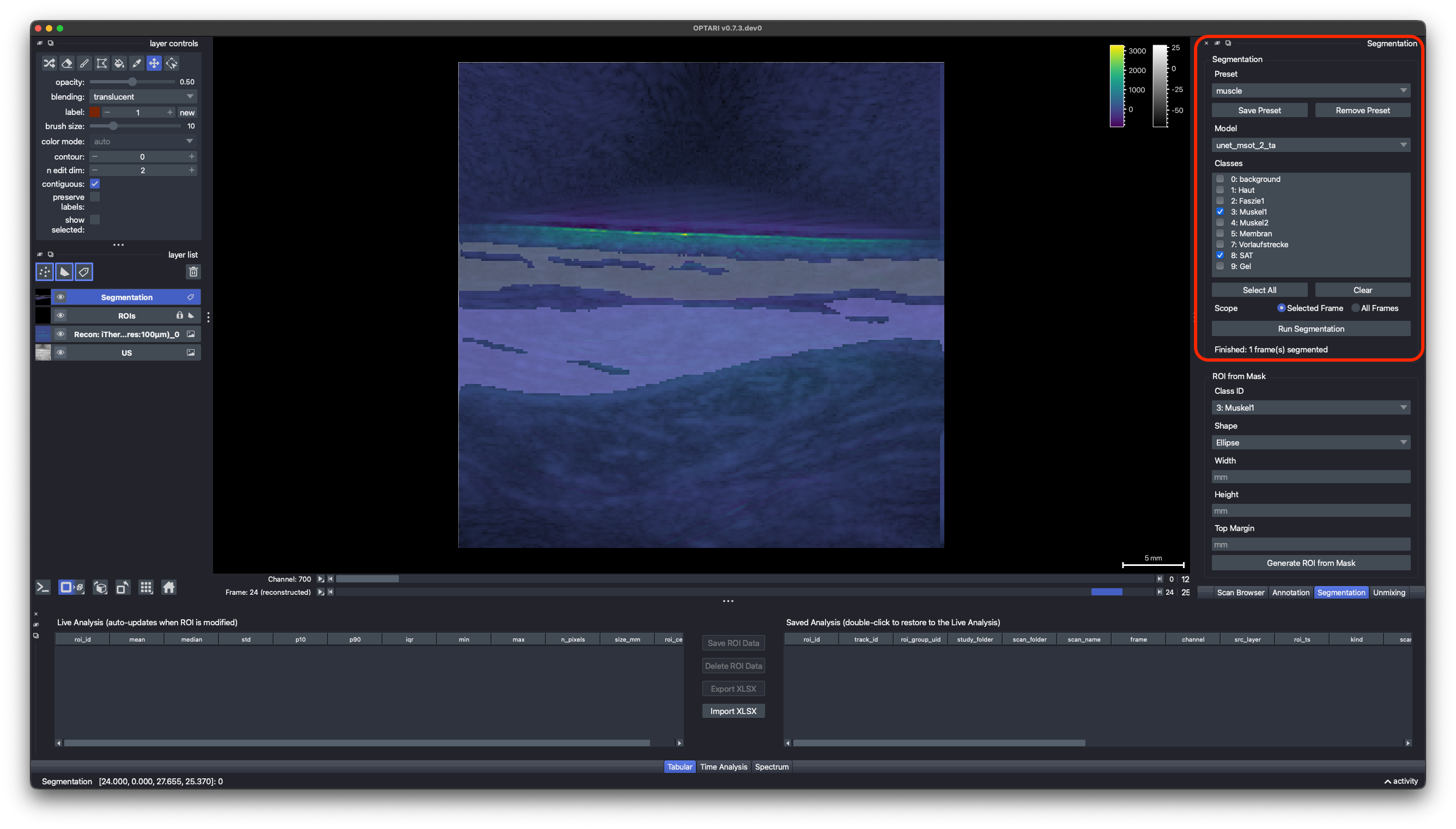
- In the Segmentation dock, choose a model from the registry. OPTARI comes with a pretrained model for three clinical examination sites that are common in OA imaging (see Segmentation Models).
- The Classes list shows the available tissue classes for the selected model. Pick which classes to segment.
- Scope chooses whether the segmentation map will be generated only for the currently selected frame or for all the frames in the scan.
- Click Generate Tissue Segmentation (or press
Shift+Ctrl+T/Shift+Cmd+T).
The result is added to the viewer as Segmentation layer.
Note
The default model weights are downloaded automatically the first time a given model is used, into the ~/.optari/models folder. This requires an internet connection once. Inference runs locally via ONNX Runtime, and falls back to CPU automatically if no compatible GPU is available.
Note
Segmentation runs in the background and can be interrupted via the Cancel button. The viewer stays fully interactive while it runs, but only one reconstruction, unmixing, or segmentation task can run at a time.
Automatic ROI placement
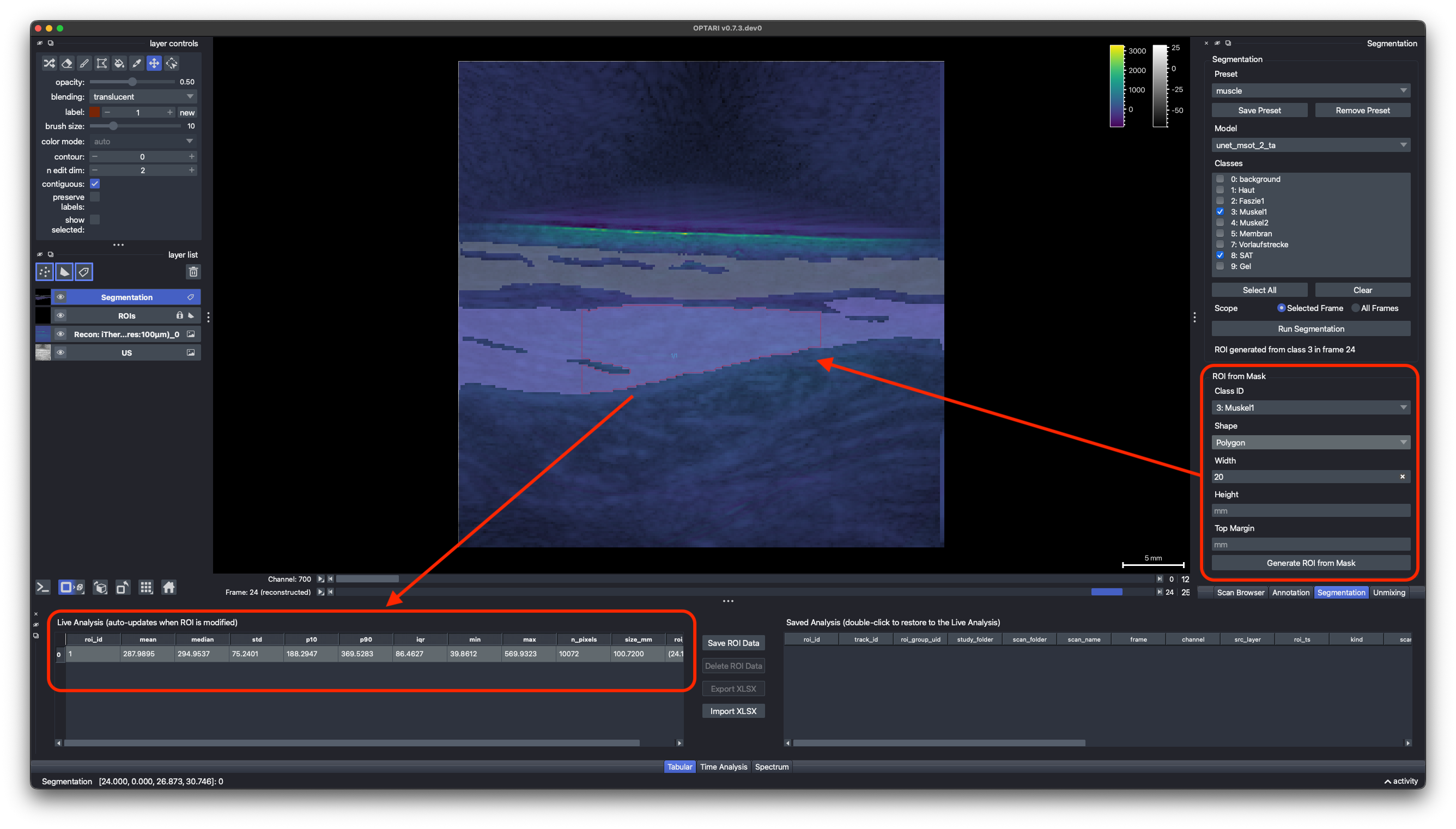
Once a segmentation mask exists, OPTARI can place an ROI directly inside the target tissue class:
- Class ID — which segmented class to place the ROI in (must be in the segmentation mask).
- Shape — ellipse, rectangle, or polygon. The polygon simply follows the outline of the segmented target tissue.
- Width / Height / Top margin — geometry of the placed ROI, in mm.
The placement strategy always centers the ROI horizontally and places it as high as possible within the target region (minus the top margin), since that is usually the area with the highest sensitivity in the scan.
Presets
At the top of the Segmentation dock, you can also choose between different presets, which will automatically fill the dock with preconfigured settings. To create a new preset, set the configuration as desired and press the Save Preset button.
Auto ROI using the ROI Library
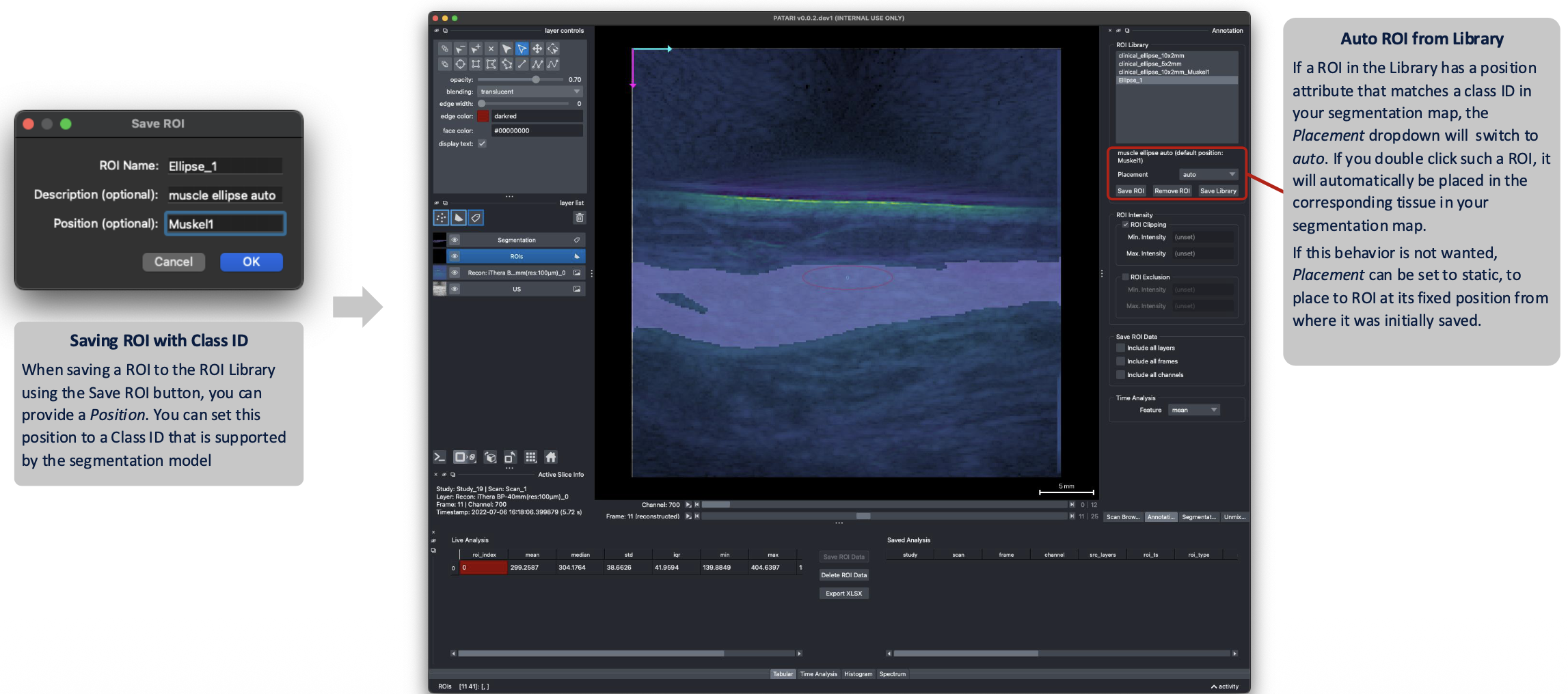
Segmentation-based placement can also be combined with the ROI Library (See Placement). Save an ROI generated above as a preset with its Location, and it will be placed in that tissue with the same top margin. If a segmentation mask is available for all frames and Scope in the Annotation dock is set to All Frames, the ROI will be dynamically placed using each frame's segmentation mask.
Note
Automated placement quality depends on how close the current scan is to the model's training distribution. New anatomical sites or scanner types might require fine-tuning the model. See Extending OPTARI for how to add your own model.